Web Development: HTML & CSS Essentials | Tech Tutorials Today
Ever wondered how websites are created? Every website you visit, from a simple personal blog to an elaborate online store, relies on technologies that tell your browser what content to display and how to present it.
Two of the most important technologies are HTML (Hypertext Markup Language) and CSS (Cascading Style Sheets).
HTML defines the structure and meaning of a webpage's content. CSS controls its visual appearance, including colors, fonts, spacing, and layouts.
Together, these technologies provide the foundation for modern web development. Whether you want to create your first personal website, develop a portfolio, or eventually build complex web applications, understanding HTML and CSS is an essential starting point.
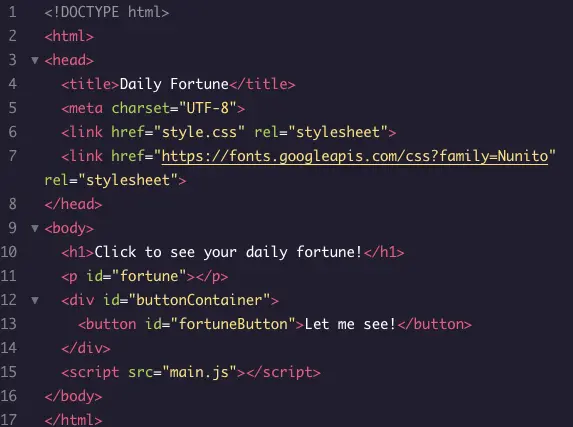
Understanding HTML
HTML, or Hypertext Markup Language, is the standard markup language used to create webpages.
Rather than defining programming logic, HTML describes the structure and meaning of content through elements.
These elements tell browsers which content represents headings, paragraphs, images, links, lists, tables, forms, and other components.
Why Is HTML Important?
HTML provides the underlying structure of every webpage.
Without HTML, browsers would lack the semantic information needed to distinguish a headline from a paragraph or a navigation menu from ordinary text.
HTML also helps search engines and assistive technologies understand page content.
For example, an <h1> element identifies a primary heading, while a <nav> element identifies a navigation section.
Using the correct HTML elements improves accessibility and makes websites easier to maintain.
Basic Structure of an HTML File
Here is a simple HTML document:
<!DOCTYPE html>
<html lang="en">
<head>
  <meta charset="UTF-8">
  <meta name="viewport" content="width=device-width, initial-scale=1.0">
  <title>My First Website</title>
</head>
<body>
  <h1>Welcome to My Website</h1>
  <p>This is my first HTML webpage.</p>
  <p>I'm learning how to build websites!</p>
</body>
</html>
The document contains several important components:
<!DOCTYPE html>declares that the document uses HTML5.<html>contains the HTML document.<head>contains metadata, including the page title.<meta charset="UTF-8">establishes the character encoding.<meta name="viewport">helps pages display properly on mobile devices.<title>defines the title displayed in browser tabs and commonly used by search engines.<body>contains the visible webpage content.<h1>identifies the main heading.<p>defines a paragraph.
Save this code in a file named index.html, then open the file in a web browser.
You now have a functioning webpage.
Understanding HTML Tags and Attributes
Most HTML elements have an opening tag and a closing tag.
For example:
<p>This is a paragraph.</p>
The opening <p> tag begins the paragraph, and the closing </p> tag ends it.
Some elements, such as <img> and <input>, do not require closing tags.
HTML elements can also include attributes.
For example:
<a href="https://example.com">Visit Example</a>
The href attribute specifies the destination of the link.
Images use the src attribute to identify the image file:
<img src="photo.jpg" alt="A mountain landscape">
The alt attribute provides a text alternative that improves accessibility.
Understanding CSS
CSS, or Cascading Style Sheets, determines how HTML elements are displayed.
While HTML describes what content means, CSS controls how it looks and how it is arranged.
CSS can modify:
- Colors and backgrounds.
- Fonts and text sizes.
- Margins and padding.
- Borders and shadows.
- Element dimensions.
- Page layouts.
- Responsive behavior.
- Animations and transitions.
Without CSS, most webpages would display using the browser's default styles.
Why Is CSS Important?
CSS allows developers to separate visual presentation from document structure.
This means the same HTML can be displayed using entirely different designs without changing its content.
CSS can also control the appearance of multiple webpages through a single shared stylesheet.
For example, if a website uses the same stylesheet across 100 pages, changing its primary color in one location can update the appearance of every page.
Understanding graphic design principles can help developers make more effective decisions about colors, spacing, typography, alignment, and visual hierarchy.
Basic Structure of CSS
Here is an example:
body {
  background-color: lightblue;
}

h1 {
  color: white;
  text-align: center;
}

p {
  font-family: Verdana, sans-serif;
  font-size: 20px;
}
Each CSS rule consists of a selector and one or more declarations.
The selector identifies the elements to style.
Declarations appear inside curly braces and consist of property-value pairs.
For example:
color: white;
Here, color is the property and white is its value.
Linking an External CSS File
Rather than placing CSS directly inside the HTML file, developers commonly create a separate stylesheet.
Create a file named styles.css:
body {
  font-family: Arial, sans-serif;
  background-color: #f8f9fa;
  color: #222;
  margin: 0;
  padding: 24px;
}

h1 {
  color: #185abc;
}
Then include this line inside your HTML <head>:
<link rel="stylesheet" href="styles.css">
Your HTML document will now use the styles defined in the external file.
This approach makes websites easier to maintain and allows styles to be reused across multiple pages.
CSS Selectors: Classes, IDs, and Elements
Selectors determine which HTML elements receive particular styles.
Element Selectors
An element selector targets every matching HTML element.
p {
  color: #333;
}
This rule applies to all paragraphs.
Class Selectors
A class selector targets elements with a matching class attribute.
HTML:
<p class="highlight">Important information</p>
CSS:
.highlight {
  background-color: yellow;
}
Classes are especially useful because multiple elements can share the same class.
ID Selectors
An ID identifies a particular element within a document.
HTML:
<section id="contact">
  <h2>Contact Us</h2>
</section>
CSS:
#contact {
  padding: 40px;
}
IDs should be unique within a page.
For reusable visual styling, classes are generally more flexible than IDs.
Understanding the CSS Box Model
Every HTML element displayed as a box participates in the CSS box model.
The box model consists of four areas:
- Content.
- Padding.
- Border.
- Margin.
The content area contains text, images, or other elements.
Padding creates space inside the border.
The border surrounds the content and padding.
Margins create space outside the border.
For example:
.card {
  background-color: white;
  padding: 24px;
  border: 1px solid #ddd;
  margin-bottom: 20px;
}
Understanding the box model is essential when diagnosing spacing and layout problems.
Using Border-Box Sizing
One useful CSS rule is:
* {
  box-sizing: border-box;
}
With border-box, specified widths and heights include padding and borders.
This makes element dimensions easier to predict.
Modern CSS Layouts: Flexbox and Grid
Modern websites rarely rely on tables or absolute positioning for their main layouts.
Instead, developers commonly use Flexbox and CSS Grid.
CSS Flexbox
Flexbox is particularly useful when arranging elements in one dimension, either horizontally or vertically.
For example:
<div class="navigation">
  <a href="/">Home</a>
  <a href="/about">About</a>
  <a href="/contact">Contact</a>
</div>
.navigation {
  display: flex;
  gap: 24px;
  align-items: center;
}
This arranges the links horizontally with consistent spacing.
Flexbox is frequently used for navigation menus, button groups, cards, and alignment.
CSS Grid
CSS Grid is designed for layouts involving rows and columns.
For example:
.grid-container {
  display: grid;
  grid-template-columns: repeat(3, 1fr);
  gap: 20px;
}
This creates three equally sized columns.
For layouts that should automatically adjust to available space:
.grid-container {
  display: grid;
  grid-template-columns: repeat(auto-fit, minmax(250px, 1fr));
  gap: 20px;
}
The number of columns changes depending on the container's width.
This is useful for responsive card layouts, product listings, portfolios, and image galleries.
Responsive Web Design
A responsive website adapts its layout to different screen sizes.
Modern websites must function on desktop monitors, tablets, and smartphones.
A layout that looks excellent on a large screen may become difficult to navigate on a phone if it does not adapt.
Mobile-First Development
A mobile-first approach begins with styles suitable for smaller screens.
Larger layouts are then introduced using media queries.
For example:
.container {
  display: block;
}

@media (min-width: 768px) {
  .container {
    display: grid;
    grid-template-columns: 1fr 1fr;
    gap: 30px;
  }
}
On narrow screens, the content displays vertically.
On screens at least 768 pixels wide, it displays in two columns.
Responsive Images
Images should generally adapt to the width of their containing element.
img {
  max-width: 100%;
  height: auto;
}
This prevents images from overflowing narrow layouts while maintaining their proportions.
Container Queries
Traditional media queries respond to the dimensions of the browser viewport.
Container queries allow components to respond to the dimensions or characteristics of their containing elements.
This makes it possible to create reusable components that adapt according to where they are placed.
In June 2026, Google's web development team highlighted expanded browser support for CSS container style queries and other newly interoperable web features. These developments make it easier to build flexible layouts using modern CSS rather than relying entirely on JavaScript.
Best Practices for HTML and CSS
Following consistent development practices makes websites more accessible, maintainable, and reliable.
1. Use Semantic HTML
Choose HTML elements according to their meaning.
Common semantic elements include:
<header>for introductory content.<nav>for navigation.<main>for primary page content.<section>for thematic sections.<article>for self-contained content.<footer>for footer information.
Semantic elements improve document organization and accessibility.
2. Use External Stylesheets
External CSS files help keep content separate from presentation.
They also allow browsers to cache shared stylesheets, potentially improving performance across multiple pages.
3. Use Meaningful Class Names
Class names should communicate their purpose.
For example:
.product-card {}
.primary-button {}
.site-navigation {}
These are generally easier to maintain than vague names such as .box1 or .thing2.
4. Maintain Consistent Formatting
Indent nested HTML elements and organize CSS rules logically.
Consistent formatting helps developers understand unfamiliar code and locate mistakes.
5. Use CSS Custom Properties
CSS custom properties allow values to be reused throughout a stylesheet.
:root {
  --primary-color: #185abc;
  --background-color: #f8f9fa;
  --spacing-medium: 16px;
}

.button {
  background-color: var(--primary-color);
  padding: var(--spacing-medium);
}
Changing a custom property can update multiple components.
6. Understand CSS Preprocessors
Sass and other preprocessors can provide development conveniences such as reusable mixins and build-time transformations.
However, modern CSS already supports features such as variables and nesting.
Beginners should learn standard CSS before introducing additional tools.
7. Keep Accessibility in Mind
Use descriptive link text, proper headings, visible keyboard focus indicators, and sufficient color contrast.
Forms should have associated labels, and images should include appropriate alternative text.
Accessibility improves usability for many different visitors.
8. Consider Search Engine Optimization
Well-structured HTML helps search engines interpret webpage content.
Descriptive page titles, meaningful headings, appropriate metadata, and clear internal navigation can improve discoverability.
Search engine optimization is more complex than adding keywords to a page. Effective SEO techniques also involve site structure, content quality, loading performance, and user experience.
Building Your First Complete Webpage
Let's combine HTML and CSS into a simple personal website.
Create a file named index.html:
<!DOCTYPE html>
<html lang="en">
<head>
<meta charset="UTF-8">
<meta name="viewport" content="width=device-width, initial-scale=1">
<title>My Personal Website</title>
<link rel="stylesheet" href="styles.css">
</head>
<body>
<header class="site-header">
<h1>My Website</h1>
<nav>
<a href="#about">About</a>
<a href="#projects">Projects</a>
<a href="#contact">Contact</a>
</nav>
</header>
<main>
<section id="about">
<h2>About Me</h2>
<p>Welcome to my first website!</p>
</section>
<section id="projects">
<h2>My Projects</h2>
<p>I am learning HTML and CSS.</p>
</section>
<section id="contact">
<h2>Contact</h2>
<p>Email: hello@example.com</p>
</section>
</main>
<footer>
<p>© 2026 My Website</p>
</footer>
</body>
</html>
Create a second file named styles.css:
* {
  box-sizing: border-box;
}

body {
  margin: 0;
  font-family: Arial, sans-serif;
  line-height: 1.6;
  color: #222;
  background-color: #f8f9fa;
}

.site-header {
  background-color: #185abc;
  color: white;
  padding: 30px 20px;
  text-align: center;
}

.site-header a {
  color: white;
  margin: 0 12px;
}

main {
  max-width: 900px;
  margin: 40px auto;
  padding: 0 20px;
}

section {
  background-color: white;
  padding: 25px;
  margin-bottom: 20px;
  border-radius: 8px;
}

footer {
  text-align: center;
  padding: 20px;
  background-color: #e9ecef;
}
Place both files in the same directory and open index.html in your browser.
You now have a small website with navigation, content sections, and responsive styling.
From Basic Websites to Professional Web Development
HTML and CSS are suitable for simple personal websites, but they also form the basis of sophisticated commercial projects.
Professional websites may include:
- Content management systems.
- Custom forms.
- Authentication and user accounts.
- Databases.
- Shopping carts.
- Search functionality.
- Interactive dashboards.
- Third-party integrations.
A business website also needs to communicate clearly, load quickly, and work consistently across devices.
Professional web design and development combines frontend technologies with content strategy, accessibility, search optimization, and sometimes custom backend software.
Understanding the basics of HTML and CSS makes it easier to evaluate these more advanced systems and participate in their development.
Adding Interactivity with JavaScript
HTML and CSS handle structure and presentation, but many websites require interactive behavior.
JavaScript allows developers to respond to user actions and update webpage content dynamically.
Examples include:
- Opening menus.
- Validating forms.
- Updating information without reloading the page.
- Creating interactive charts.
- Displaying notifications.
- Loading content from APIs.
Consider this simple example:
<button id="helloButton">Click Me</button>

<script>
document.getElementById("helloButton").addEventListener("click", function() {
  alert("Hello, world!");
});
</script>
Clicking the button displays a message.
As projects become more complex, developers may adopt JavaScript frameworks to organize application components and manage changing interface state.
Can Other Languages Run in the Browser?
JavaScript is the primary programming language used for browser interactivity, but WebAssembly allows compiled languages to execute within supported browser environments.
For example, developers exploring frontend development with Rust can compile Rust code to WebAssembly and integrate it with web interfaces.
This can be useful for computationally intensive operations or projects that share code between server-side and browser-side applications.
HTML and CSS remain essential even when applications use Rust, WebAssembly, or other advanced technologies.
Common HTML and CSS Problems and Solutions
1. Overlapping Elements
Overlapping often occurs when absolute positioning is used unnecessarily or fixed dimensions do not accommodate content.
Flexbox and Grid are usually preferable for general page layouts.
Use absolute positioning primarily when an element intentionally needs to be positioned relative to a containing element.
2. Media Queries Not Working
First confirm that the viewport meta tag is present:
<meta name="viewport" content="width=device-width, initial-scale=1">
Next, verify the media query syntax and ensure no conflicting CSS declarations override the expected styles.
Media queries do not have to appear at the end of a stylesheet, but rule order and specificity can affect which declarations take precedence.
3. Cross-Browser Compatibility
Browsers generally follow web standards, but newly introduced features may not be supported equally across every browser version.
Use browser developer tools and compatibility references to test important functionality.
Feature queries can provide fallback behavior:
.card-layout {
  display: block;
}

@supports (display: grid) {
  .card-layout {
    display: grid;
    grid-template-columns: repeat(2, 1fr);
  }
}
4. HTML Validation Errors
Incorrectly nested elements, duplicate IDs, missing required attributes, and other errors can cause unexpected behavior.
Use HTML validation tools to identify structural problems.
Browsers may attempt to recover from invalid HTML, but relying on this behavior can produce inconsistent results.
5. CSS Styles Not Applying
Common causes include:
- Incorrect stylesheet paths.
- Misspelled selectors.
- Higher-specificity rules overriding your declarations.
- Invalid CSS syntax.
- Browser caching.
Use your browser's developer tools to inspect the element and see which styles are active.
6. Slow Loading Times
Large images, excessive scripts, and unnecessary styles can increase page loading time.
Useful improvements include:
- Compressing images.
- Using appropriate image dimensions.
- Loading nonessential scripts efficiently.
- Removing unused code.
- Caching static resources.
- Avoiding unnecessary dependencies.
Website loading speed is an important part of overall computer and browser performance, but optimizing the webpage itself is usually the most direct way to improve its loading experience.
7. Security Problems
HTML and CSS alone do not provide application security.
Websites that accept user input or communicate with backend services must consider threats such as cross-site scripting, insecure authentication, and improper handling of sensitive information.
Developers working with forms, APIs, and user accounts should understand cybersecurity fundamentals before deploying production applications.
Tools for Learning HTML and CSS
You do not need expensive software to begin web development.
A basic text editor and modern browser are sufficient.
However, several tools can improve the development experience.
Code Editors
Editors such as Visual Studio Code provide syntax highlighting, automatic indentation, extension support, and integrated development tools.
Browser Developer Tools
Chrome, Firefox, Edge, and Safari include development tools that let you inspect HTML, experiment with CSS, and diagnose layout problems.
Most desktop browsers open developer tools using F12 or a keyboard shortcut.
Version Control
Git helps developers track changes, compare versions, and collaborate on projects.
Learning version control with Git becomes increasingly valuable as websites grow beyond a handful of files.
Local Development Servers
Simple HTML files can often be opened directly in the browser.
However, applications using JavaScript modules, API requests, or particular browser security features may require a local development server.
Using a local server more closely resembles how the website will behave when hosted online.
Frequently Asked Questions
What is HTML and why is it important?
HTML is the standard markup language used to structure webpage content.
It defines headings, paragraphs, links, images, forms, and other page elements.
What is CSS and why is it important?
CSS controls the appearance and layout of HTML elements.
It allows developers to define colors, typography, spacing, positioning, and responsive designs.
Is HTML a programming language?
HTML is a markup language rather than a general-purpose programming language.
It describes document structure and meaning but does not independently provide the programming logic available in languages such as JavaScript, Python, or Rust.
Can I build a website using only HTML and CSS?
Yes.
Many informational websites, landing pages, portfolios, and static websites can be built using HTML and CSS without JavaScript.
How long does it take to learn HTML and CSS?
Beginners can learn the basic syntax within days or weeks.
Developing confidence with responsive layouts, accessibility, advanced selectors, and complex design systems requires additional practice.
Should I learn HTML before CSS?
Yes.
Understanding HTML first makes it easier to understand which elements CSS selectors target and how webpage structures affect layouts.
However, you can begin experimenting with CSS relatively early.
Is CSS Grid better than Flexbox?
Neither is universally better.
Flexbox is especially useful for arranging elements along one axis, while Grid is designed for two-dimensional layouts involving rows and columns.
Many modern websites use both.
What is responsive web design?
Responsive web design allows webpages to adjust their appearance and layout according to available screen space.
It helps websites remain usable on smartphones, tablets, and desktop computers.
Do professional developers still write HTML and CSS?
Yes.
Even when developers use frameworks, content management systems, or visual website builders, HTML and CSS remain fundamental technologies underlying browser-based interfaces.
Conclusion
HTML and CSS are the foundation of web development.
HTML provides the structure and meaning of webpage content, while CSS defines how that content appears across different devices and screen sizes.
By understanding semantic elements, selectors, the box model, Flexbox, Grid, responsive layouts, and accessibility, you can create websites that are both attractive and functional.
Start by building small projects, experimenting with different layouts, and inspecting existing webpages to understand how they work.
As your skills develop, you can explore JavaScript, advanced frameworks, backend programming, and professional website development.
Consistent practice is the most effective way to become comfortable with these technologies and begin creating increasingly sophisticated websites.